

Online status
The green icon shows that the Wi-Fi router is connected and the heat pump can be controlled remotely.
ATTACK Heating · mobile control
The ATTACK Inverter R32 heat pump comes with a free Wi-Fi router and access to the ATTACK Heating mobile app.

Simple remote control
Check the current status and take full control of your heat pump from anywhere in the world.
Set your preferred heating and hot water temperatures. Lower them while you are away, then raise them again before you return. Holiday mode helps tailor operation to your plans.
The app also gives you quick access to energy use, compressor status, selected modes, and scheduled programmes.

At a glance
Device status, operating modes, and key settings are easy to find on the home screen.
The green icon shows that the Wi-Fi router is connected and the heat pump can be controlled remotely.

The grey icon means the router is offline. Check its internet connection.

The percentage shows the compressor’s current output.

The icon shows that the compressor is not running.

The home screen shows the selected heat pump operating mode.

The moon icon shows that night mode is active and helps reduce noise.

Shows when the heat pump is in a defrost cycle.

Shows that electricity is being shifted from the high tariff to the low tariff.

Find updates, errors, device information, and the notifications you have set up here.

The value in watts shows the heat pump’s current electricity consumption.

Shows the current indoor temperature.

Shows the outdoor temperature measured by the system.

The icon marks the heating circuit. The flame shows that the heat pump is currently heating the water for the heating system.

The icon marks domestic hot water heating; the flame shows when the water is being heated.

See the active time schedules for heating and domestic hot water.

Set zones, holiday and night modes, legionella protection, and backup heating here.

Switch the unit on or off and select cooling, automatic mode, domestic hot water, or heating.

Open more detailed information about the current status of the outdoor unit.
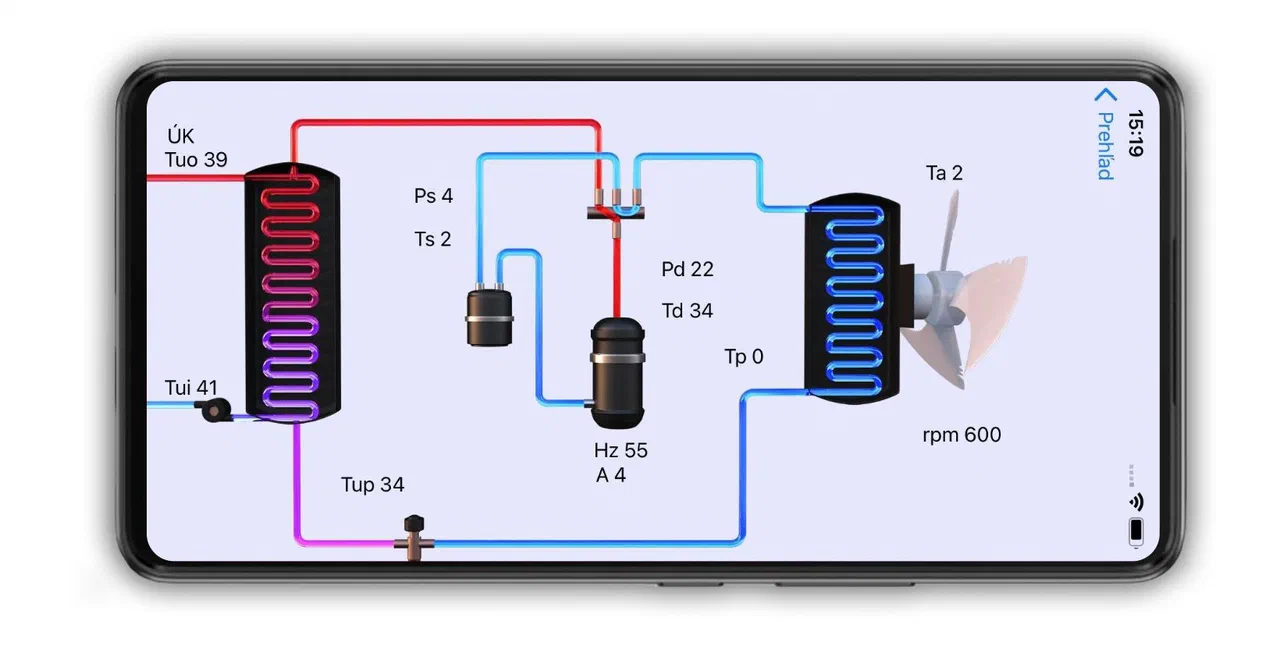
Device status at a glance
The app provides detailed information about the heat pump status, so you can quickly check its connection and current operation.
A clear view of energy use
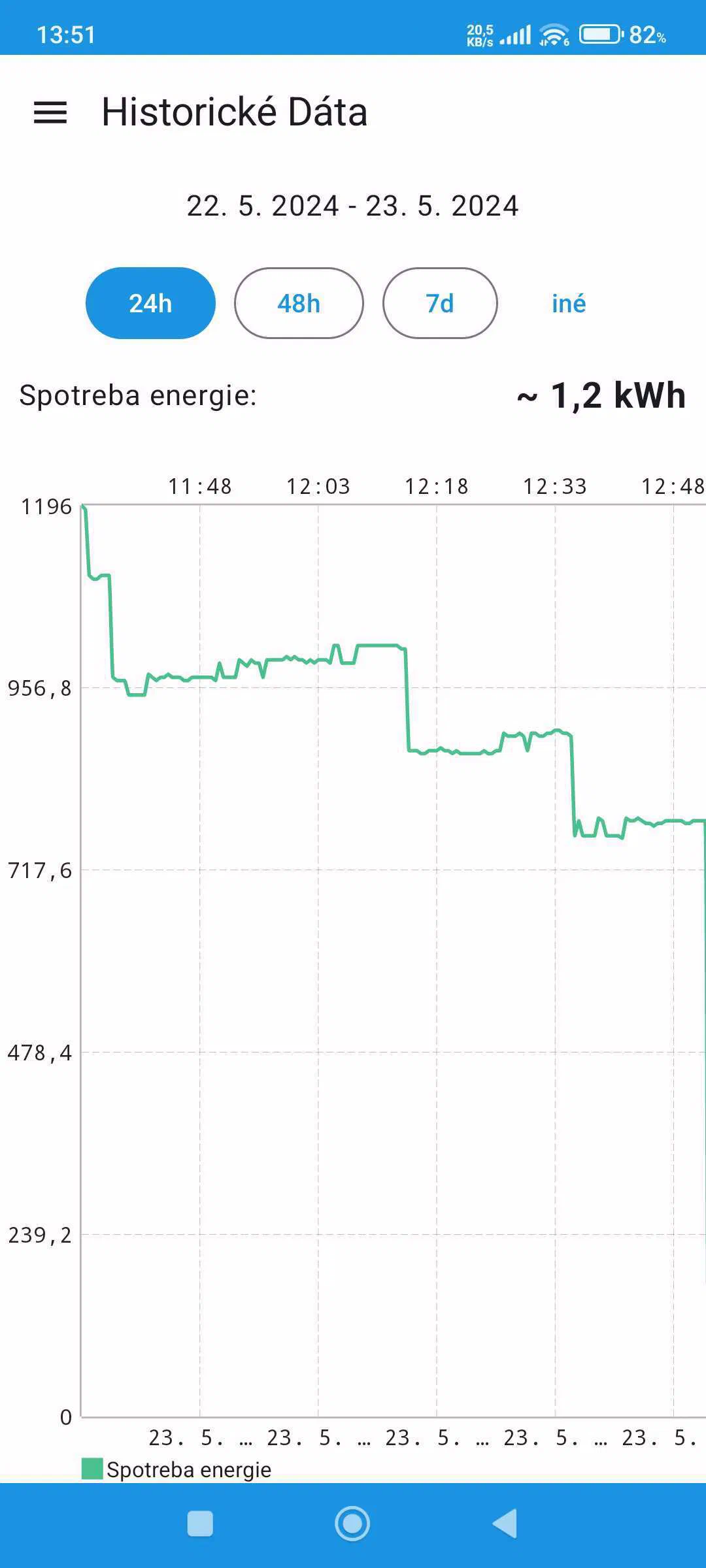
We keep improving the app and adding new features. It includes an energy meter and historical data so you can follow how your heat pump is operating.
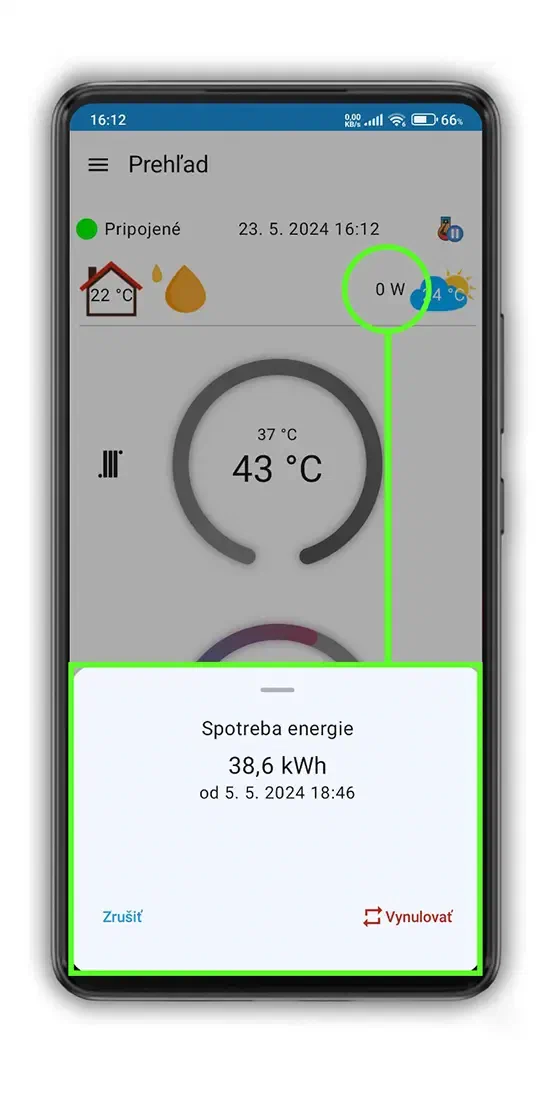
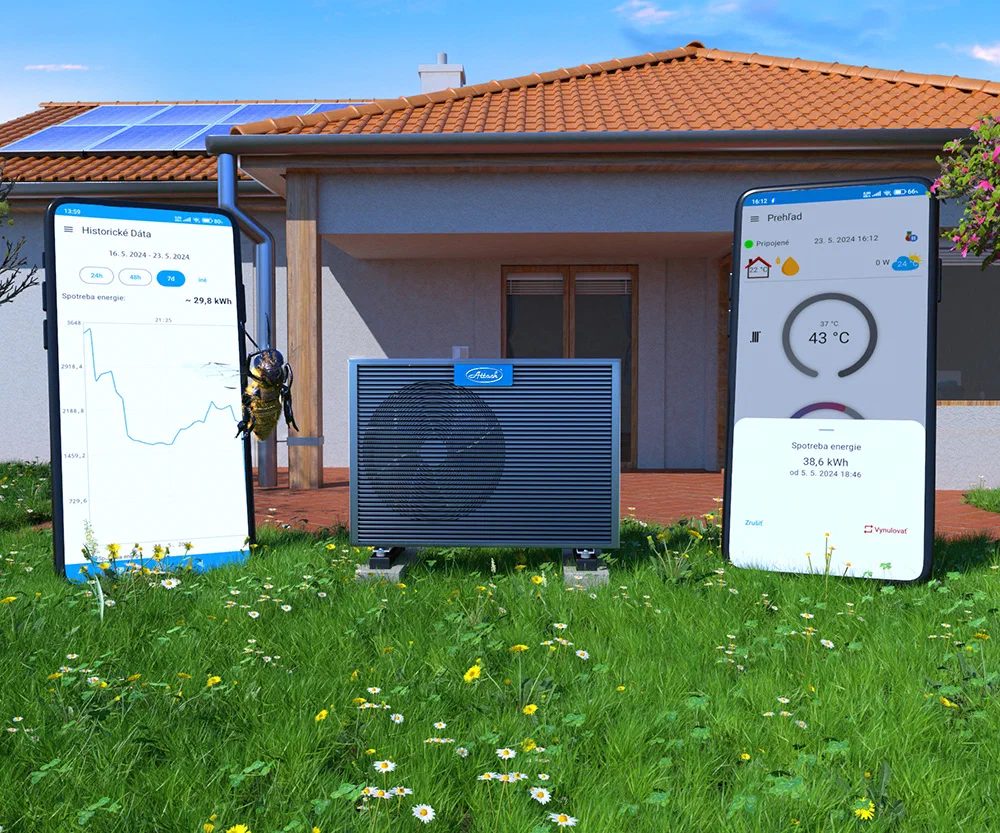
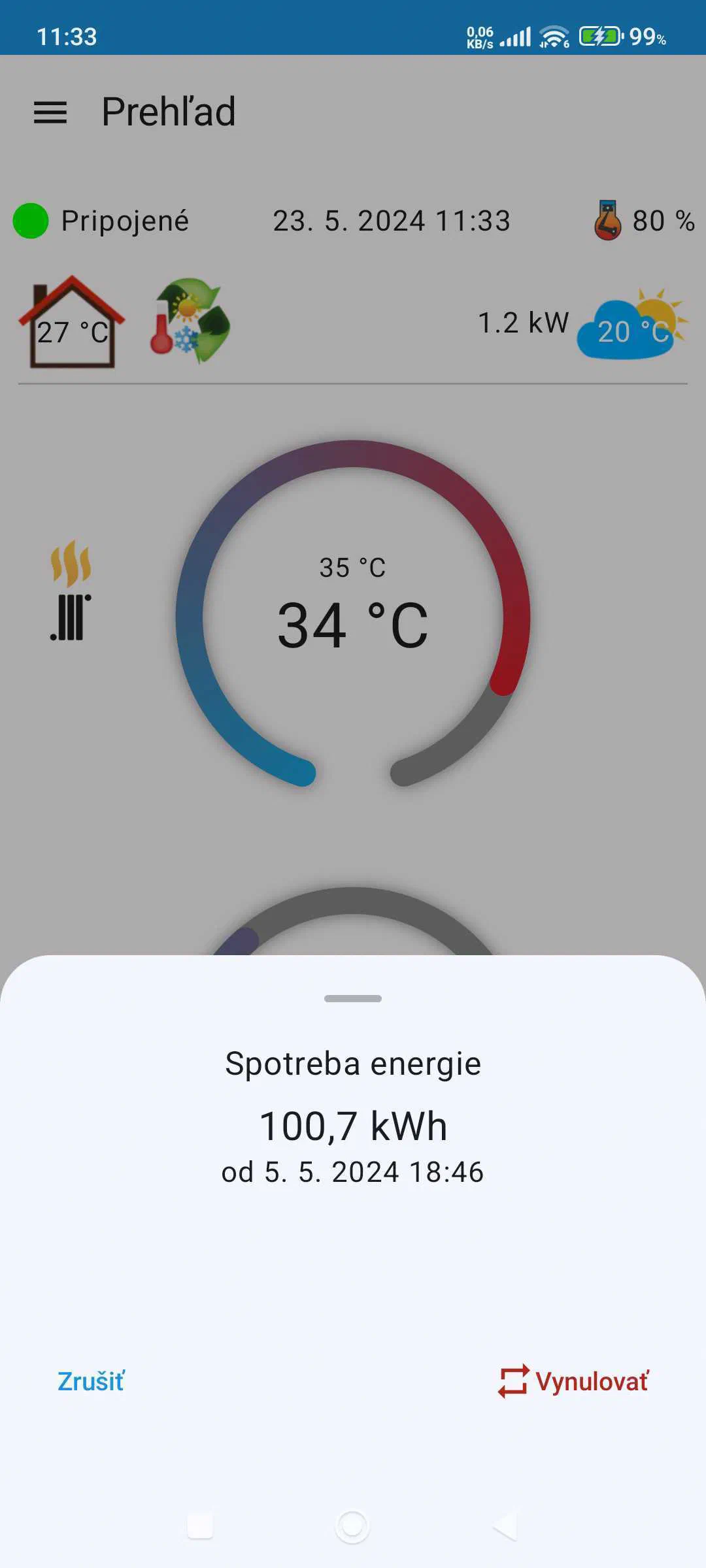
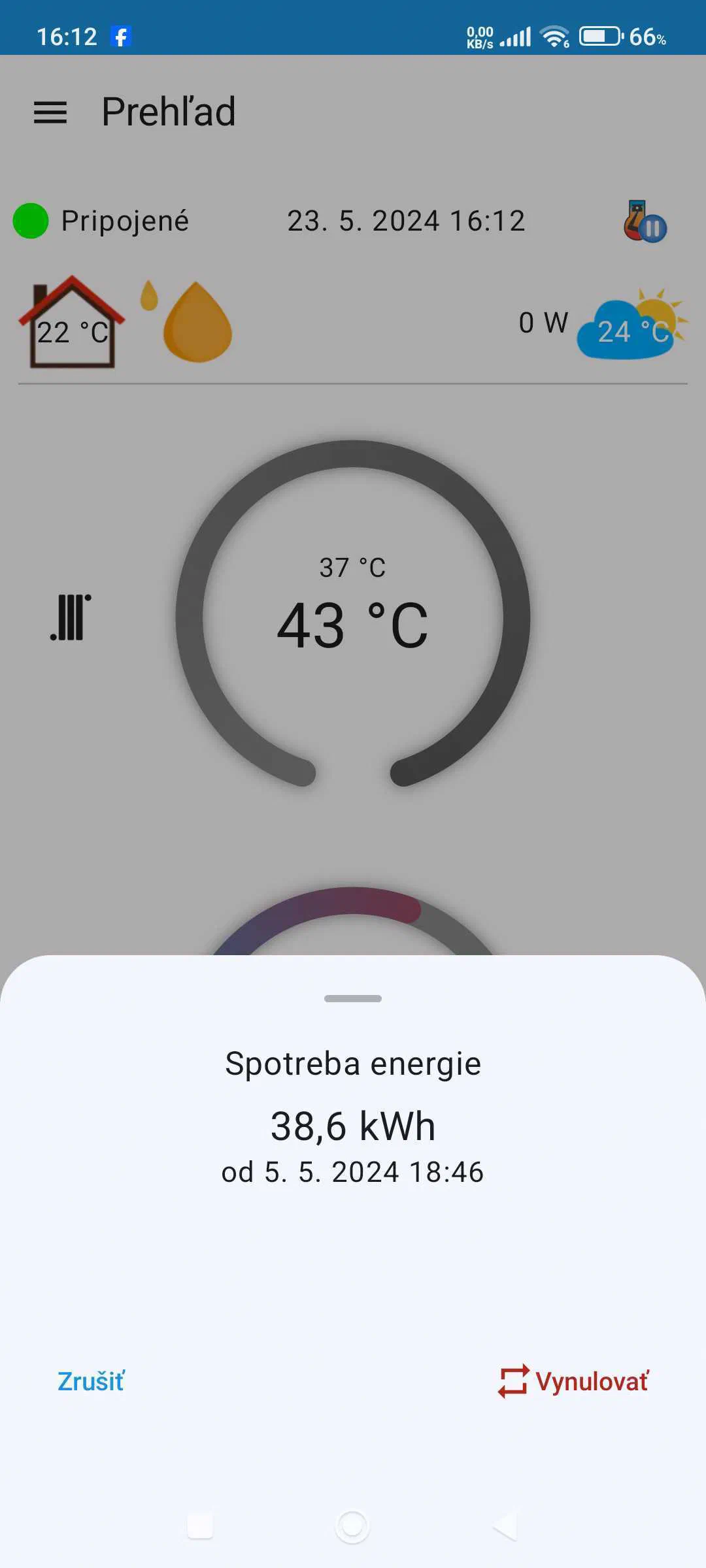
Tap the watt value on the home screen to open the current consumption meter. It shows the energy used since the last reset.

After a reset, daily consumption tracking starts again. Historical data is kept.

View past readings in the Energy Consumption section and select a period of up to three months.
ATTACK Heating
We keep improving the mobile app and adding features that make everyday use of your heat pump easier.
View the heat pumpReliable comfort for your home
Discover the heat pump you can conveniently monitor and control with the ATTACK Heating app.